mardi 1 mai 2018

How to migrate the SYSVOL replication system from FRS to DFS-R

Since Windows Server 2008,  DFS-R can be used for SYSVOL replication instead of FRS.
A domain controller on Windows Server 2019 is no longer compatible  with FRS for SYSVOL replication.
If you still use FRS for SYSVOL replication, you have to migrate to DFS-R to be able to add an additional domain controller on Windows Server 2019.
If the first domain controller is promoted on Windows 2008 or higher and the Domain functional level is Windows 2008 or higher  , DFS-R will be automatically used for SYSVOL replication.
In this article, I will show you how to migrate SYSVOL replication system from FRS to DFS.

Prepare prerequisites:

  • All domain controller running on Windows Server 2003 must be demoted 
  • The Domain Functional Level must be 2008 or higher :


  • Check the replication status and domain controllers health:


  • Check the DFSR migration status, you can use the following command:
    dfsrmig /getglobalstate

Before starting the migration, you can check the current sysvol path by running the  command net share on each domain controller:


You can also check the SYSVOL path from registry key:


How to migrate SYSVOL replication system to DFS-R:

  • Run the following command to start the migration:
dfsrmig /setglobalstate 0
  • Run the following command to change the migration state from "Started" to "Prepared" on all domain controller:

dfsrmig /setglobalstate 1


During in this step a new folder named SYSVOL_DFSR will be created on all domain controllers:


Run the following command to check if all domain controllers are migrated to "Prepared" state before performing the next step:

dfsrmig /getglobalstate
  • Run the following command to change the migration state from "Prepared" to "Redirected":

dfsrmig /setglobalstate 2

During in this step, it is recommended to avoid any modification on sysvol share ( GPO,script..ect) because the SYSVOL folder will be moved to  SYSVOL_DFSR.We can check it from the registry key value once the domain controller status become "Redirected":

We can also use net share to check the new path of sysvol share:

Run the following command to check if all domain controllers are migrated to "Redirected" state before performing the next step:

dfsrmig /getglobalstate
  • Run the followings command to change migration state from "Redirected" to "Eliminated":
dfsrmig /setglobalstate 3
 

In this step , the old folder sysvol will be deleted:

The Ntfrs service will be also disabled  on all domain controllers:


Run the following command to check if all domain controller are migrated to "Eliminated" state:

dfsrmig /Getglobalstate


mardi 20 février 2018

How to backup and restore GPO settings

 Before GPO setting modification, the backup is recommended practice to simplify the rollback in case of problem.

In this article, we will explain how to back up, restore, and import GPO settings using GPMC and PowerShell.
We have created new GPO named test1 with the following settings:


How to backup a GPO:

Backup GPO using GPMC ( Group Policy Management console):

Below the different steps of GPO backup via GPMC
  • Go under Group Policy Objects, find your GPO and choose the backup option as shown  below:

  • Add the path where you backup GPO and click Backup:
  • Click OK to finish:

Backup GPO using PowerShell commands:

You can also perform GPO backup using  PowerShell using the following commands :

import-module grouppolicy
Backup-Gpo -Name GPO_Name -Path Backup_location

How to restore a GPO:

Restore GPO using GPMC ( Group Policy Management consol):

I have reset GPO settings of test1, to test the restoration:


Below the different steps of GPO restoration via GPMC : 
  • Go under Group Policy Objects, find your GPO and click on Restore from Backup  as shown  below: 
  • Click Next:
  • Add the backup path and click Next:
  • Select the backed up GPO and click Next:
  • Click Finish:
  • Click OK:

Restore GPO using Powershell :

You can also use PowerShell to restore a GPO :

import-module grouppolicy
Restore-GPO -Name "Test1" -Path "E:\BacckupFolder"

How to import a GPO settings from a backup:

We are able import GPO settings from backup into another GPO, before perform this task, it's recommended to backup the target GPO before the import.

Import GPO using GPMC (Group Policy Management Console):

Below the different steps of GPO importation via GPMC : 
  • Go under Group Policy Objects, find the target GPO and click on Import Settings as shown  below: 
  • Click Next:
  • In this step you can backup the target GPO then click Next:
  • Add backup folder and click Next:
  • Select the backed up GPO and click on Next:
  • Click  Next:
  • Click Finish:
  • Click OK:

Now, all the settings of backed up GPO  has been imported on target GPO TEST2 as shown below:

Import GPO using PowerShell:

The followings commands can be used to import GPO settings from backup to another GPO:

import-module grouppolicy
Import-Gpo -BackupGpoName "Backup_GPO_Name" -TargetName "Targer_GPO_Name" -Path "Backup_Location"

How to reset the settings of defaults GPO:

When you promote new domain, there are two GPO created automatically named Default Domain Policy linked to domain and Default Domain Controller Policy linked to Domain controller OU.

To reset only the GPO settings of Default Domain Policy , run the following command:
bypass the compatibility issue between the schema version and the operating system

dcgpofix /ignoreschema /target:Domain
To reset only the GPO settings of Default Domain Controller  Policy , run the following command:

dcgpofix /ignoreschema /target:DC
To reset the GPO settings of the both Default GPO , run the following command:

dcgpofix /ignoreschema /target:both

mardi 9 janvier 2018

Comment créer le groupe "Cloneable Domain Controllers"

Le groupe Cloneable Domain Controllers est recommandé dans le processus de clonage, il permet de donner les permissions de clonage au niveau des contrôleurs de domaine source.
Le PDC crée automatiquement le groupe Cloneable Domain Controllers quand il est transféré sur un DC sous Windows 2012 ou plus.
Si la langue du système d'exploitation du PDC est française, ce dernier le crée avec le nom suivant :contrôleurs de domaine clonables. Pour éviter l'échec du processus de clonage, il faut le renommer en anglais : Cloneable Domain Controllers.


Si le groupe "Cloneable Domain Controllers" est supprimé par accident, et qu'aucune solution de restauration n'est configurée pour le récupérer rapidement comme la corbeille active directory, dans ce cas, il faut un autre groupe avec le même nom et les mêmes permissions.
Dans cet article nous allons expliquer comment recréer ce groupe et restaurer ces permissions manuellement en cas de suppression ou modification accidentelle.

Restaurer les permissions "Cloneable Domain Controllers" via l'interface graphique:

Pour restaurer les permissions du groupe "Cloneable Domain Controllers" via l'interface graphique il faut suivre les étapes suivantes:
  • Créer un nouveau groupe de type Global avec le même nom "Cloneable Domain Controllers":

  • Ouvrir la console Centre d'administration Active Directory


  • Cliquer avec le bouton droit de la souris puis sur Propriétés:

  • Cliquer sur Extension puis sur Avancé dans l'onglet sécurité :

  • Cliquer sur Ajouter:

  • Cliquer sur Sélectionner un principal:

  • Taper le nom du groupe "Cloneable Domain Controllers":

  • Cocher "Allow a DC to create a clone of itself" et cliquer sur OK:

  • Cliquer sur Appliquer pour valider les changements éffectués:


Restaurer les permissions "Cloneable Domain Controllers" via Powershell:

Il est possible de faire le même travail via Powershell en se basant sur le script proposé par le lien suivant FixVDCPermissions.ps1

import-module activedirectory  
cd ad:  
$domainNC = get-addomain  
$dcgroup = get-adgroup "Cloneable Domain Controllers"  
$sid1 = (get-adgroup $dcgroup).sid  
$acl = get-acl $domainNC  
$objectguid = new-object Guid 3e0f7e18-2c7a-4c10-ba82-4d926db99a3e  
$ace1 = new-object System.DirectoryServices.ActiveDirectoryAccessRule $sid1,"ExtendedRight","Allow",$objectguid  
$acl.AddAccessRule($ace1)  
set-acl -aclobject $acl $domainNC  
cd c: 

mercredi 4 octobre 2017

Créer un magasin central pour gérer les modèles d'administration

Comment créer un magasin central :

Le magasin central ou le central store (en anglais), permet de créer un emplacement unique des fichiers admx ,sous le répertoire Sysvol qui sera répliqué par la suite avec tous les contrôleurs de domaine du domaine en question.

Avant la création du central store , les modèles d'administration sont récupérés depuis l'ordinateur local :


Pour créer un magasin central pour placer les fichiers admx des modèles d'administration , il faut créer un répertoire nommé PolicyDefinition sous le répertoire Policies qui existe dans le SYSVOL ,qui sera répliqué automatiquement dans tous les contrôleurs de domaine.
 Dans notre exemple le nom du domaine est lab1.lan , pour créer un magasin central ,  un nouveau répertoire vide nommé PolicyDefinition a été créé sous \\lab1.lan\SYSVOL\LAB1.lan\Policies:


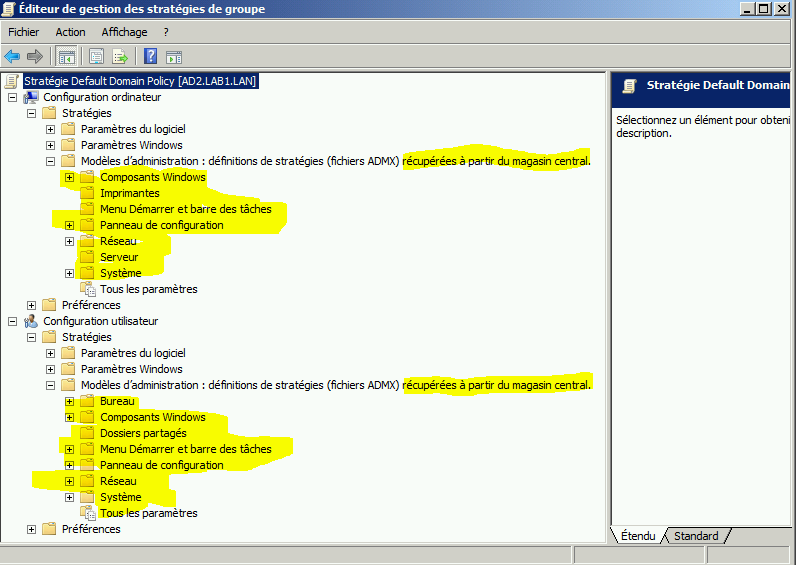
Après la création du répertoire PolicyDefinition, les fichiers admx des modèles d'administration seront récupérés depuis le magasin central :


Comment ajouter un nouveau fichier admx dans le magasin central:

En ce qui concerne les modèles d'administration téléchargés depuis le site Microsoft (par exemple ceux qui sont utilisés pour gérer google chrome, office, Windows 10 et Windows 2016..ect), on trouve deux types de fichier d’extension différentes admx et adml.

Le fichier adml est indispensable pour la configuration du nouveau modèle d'administration, s'il n'est pas présent dans le bon emplacement ,un message d'erreur s'affiche lors de l'ouverture de la GPO:


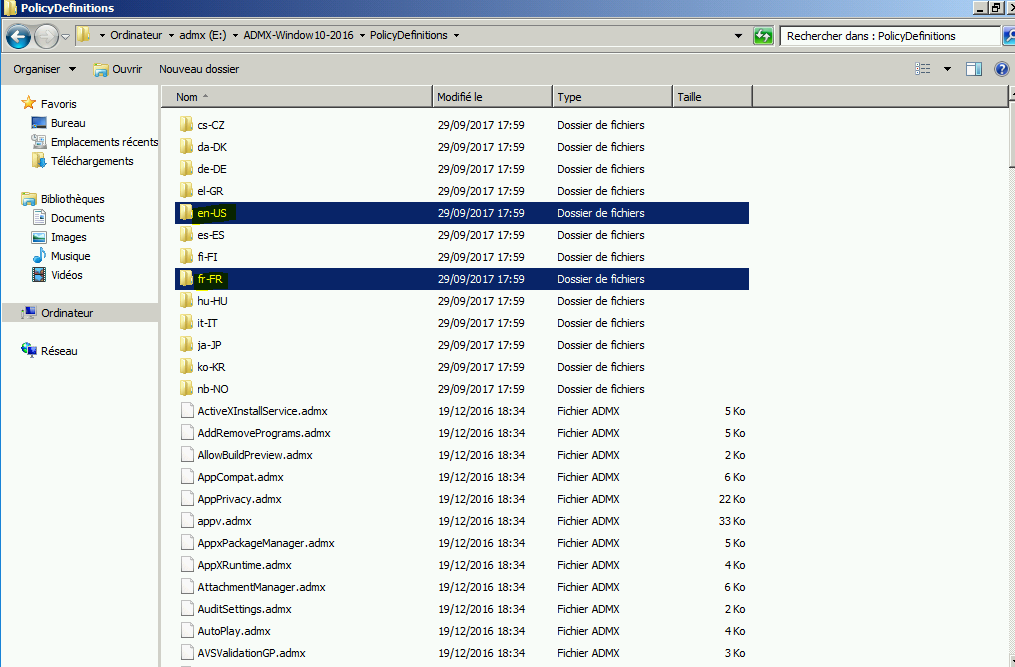
Si vous avez plusieurs langues dans votre parc informatique, il faut copier les fichiers adml  de chaque langue sous un répertoire dédié : par exemple pour la langue française fr-FR et l'anglais en-US.

Par contre, pour les fichiers admx, ils doivent être placés directement sous le répertoire PolicyDefintion.

Dans notre exemple, nous allons expliquer étape par étape comment ajouter les fichiers des modèles administration de Windows 2016 et Windows 10 comme exemple :
  • Télécharger depuis le site de Microsoft le fichier d'installation qui contient les modèles d'administration de Windows 10 et Windows 2016 :


  • Cliquer sur le fichier Windows 10 and Windows Server 2016 ADMX:


  • Cliquer sur exécuter:
  • Cliquer Next:
  • Cliquer sur Next:
  • Spécifier le dossier pour placer les fichiers admx et adml : E:\ADMX-Windows10-2016 ,puis cliquer sur Next:

  • Cliquer sur Next:


  • Cliquer sur close pour terminer.


    • Aller vers le répertoire E:\ADMX-Windows10-2016 et sélectionner tous les fichiers admx pour les copier sous \\lab1.lan\SYSVOL\LAB1.lan\Policies\PolicyDefinitions:


    • Sélectionner un ou plusieurs répertoires qui contiennent les fichiers adml en fonction de la langue utilisée sur les postes de travail, puis les copier sous  \\lab1.lan\SYSVOL\LAB1.lan\Policies\PolicyDefinitions, si le répertoire est déjà présent, il faut juste ajouter les fichier adml dedans:
    • Vérifier que tous les fichiers admx et adml sont présents sous \\lab1.lan\SYSVOL\LAB1.lan\Policies\PolicyDefinitions

    • Ouvrir une GPO et vérifier que les options ajoutées par les nouveaux modèles d'administration sont bien présentes depuis la console: