lundi 18 octobre 2021

Comment créer une stratégie de mot de passe via Password Settings Object PSO

Password Settings Object PSO permet d'appliquer une stratégie de mot passe sur un ou un groupe d'utilisateurs du même domaine. 
Grâce à la PSO, nous sommes capable de créer et appliquer plusieurs stratégie de mot de passe dans le même domaine.
Pour activer PSO, il faut que le niveau fonctionnel du domaine soit Windows 2008 ou plus:


Créer une stratégie de mot de passe via PSO:

La création d'un stratégie de mot de passe via PSO est possible à travers la console ADSIEDIT, Powershell et la console centre d’administration Active Directory.

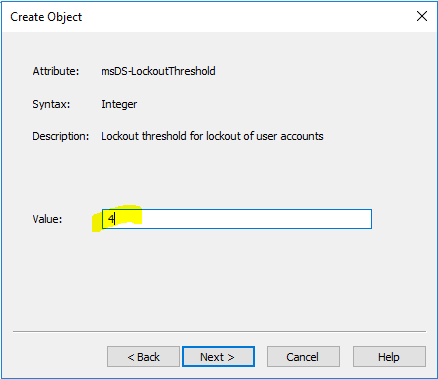
Créer une PSO à travers la console ADSIEDIT.msc:


Cette méthode peut être utilisée sur les versions Windows 2008 ou plus.Ci-dessous l'explication de chaque étape:


  • Ouvrir la console ADSIEDIT.msc et sélectionner Default naming context:


  • Aller vers CN=Password Settings Container,CN=System,DC=domain,DC=local et cliquer à travers le bouton droit sur New puis Object:


  • Cliquer sur NEXT:


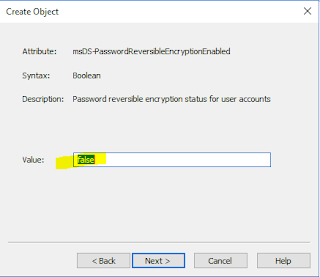
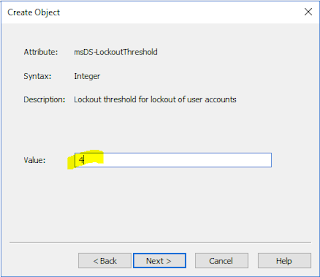
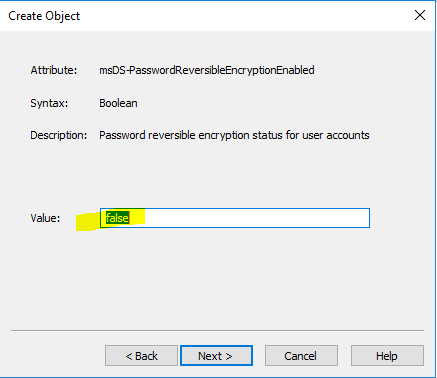
  • Taper le nom du nouveau objet:


mardi 17 août 2021

Comment appliquer une stratégie du mot de passe via GPO

La stratégie de mot de passe permet de définir des critères pour renforcer la sécurité des mots de passe des utilisateurs.

Dans cet article nous allons expliquer comment créer et appliquer une stratégie de mot de passe via GPO qui répond aux critères et aux exigences de la sécurité.

Gérer la stratégie de mot de passe des comptes utilisateurs du domaine:

Pour appliquer une stratégie de mot de passe sur les comptes utilisateurs du domaine, il existe deux méthodes : soit par GPO ou bien PSO.

Appliquer la stratégie de mot de passe sur les utilisateurs de domaine via GPO:

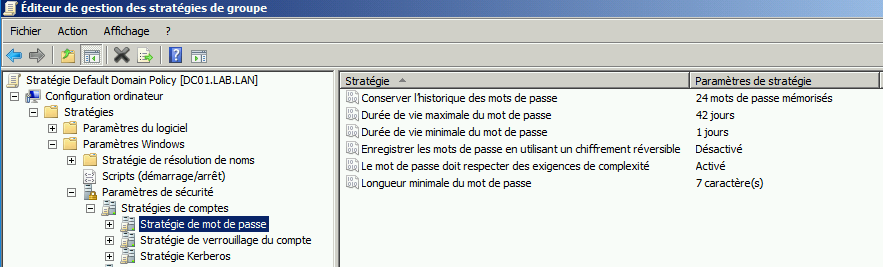
Par défaut, tous les utilisateurs du domaine subissent la stratégie du mot de passe définie dans la GPO Default Domain Policy:


la GPO Default Domain Policy est la seule GPO capable d'appliquer une stratégie de mot passe sur les comptes du domaine. Par conséquence, nous ne pouvons appliquer qu'une seule stratégie de mot de passe par domaine via GPO.
Pour créer plusieurs stratégies de mot de passe ,il faut utiliser PSO (Password Settings Object) qui ne sont disponible que dans les domaines ayant un niveau fonctionnel du domaine Windows 2008 ou plus.

Gérer la stratégie de mot de passe des comptes locaux:    

Pour les comptes locaux, la stratégie de mot de passe  peut être appliqués via GPO:

Il suffit de créer une nouvelle GPO avec les paramètres de stratégie de mot de passe ,l'attacher à l’unité d'organisation des machines en question.
Il est également possible utiliser la GPO local via l'outil gpedit.msc pour définir et appliquer une stratégie de mot de passe sur les comptes locaux.


samedi 1 mai 2021

How-to create passoword policy through GPO

The password policy define the criteria to enhance the security of user password.

In this topic, I will shows you how we can apply password policy through GPO.

To apply a password policy on domain user accounts, there are two methods: Group Policy Object  and Password Settings Object.

How-to apply a passwor policy on domain user accounts through GPO: 

By default, the password policy settings defined on the defaut GPO Default Domain Policy are applied on all domain user accounts.


The Default Domain Policy GPO is the only GPO that can enforce a password policy on domain accounts. therefore, we can only apply one password policy per domain via GPO for domain user accounts.
If you need to create many password policy in the same domain, you have to create Password Settings object available when the domain functional level is Windows 2008 or higher.

How-to apply a password policy on local user accounts:

Concerning the local users accounts, we can apply the password policy through domain GPO:

Just create a new GPO with the password policy settings, attach it to the organizational unit of the machines in question.

It is also possible to use the local GPO via the gpedit.msc tool to set and enforce a password policy settings on local accounts.


jeudi 9 août 2018

How to migrate certification authority to new server


In this topic , we will explain step by step how to migrate certification Authority to another server.
 In our example we will try to migrate CA server installed on Windows 2008 R2 to new server under Windows 2016:

Backup certification authority:

  • The CA backup can be performed through the CA wizard:

  • Click on next to continue:


  • On this page check the two options and spécify the path of backup then click Next:


  • A new password is required to access on backup files:

  • Click on finish:

  • On backup path, we find all backed up files:


Export registry keys :

Export registry keys from this path HKLM\SYSTEM\CurrentControlSet\Services\CertSvc\Configuration:


Remove CA role from old server:

To be able to reuse the name of old server , you have to remove the CA role before rename it.
  • From server manager, you can perform the CA uninstalling:

  • Click on remove:


  • Restart the server to finish:


Now you can rename the old server.

Install new server with the same name as old server and restore CA certificate and database:

Install the role certification autority on new server then start the AD CS configuration:
  • Specify the credentials then click on Next:


  • Select Certification Authority role then click on NEXT:


  • Specify the Type of the CA then click  on NEXT:


  • Select the type of CA then click NEXT:


  • Select the option Use existing private key:


  • Click on Import:


  • Specify the existing Certificate:


  • Select on Certificate and click on NEXT:


  • Add the database locations then select NEXT:


  • Click on confirmation:


  • Click on close:


  • Open CA console then click on Restore:


  • Click on NEXT:


  • Specify the path and select the 2 items to restore:


  • Specify the password:


Once you complete database restoration , you can restore registry keys backed up from the old Server.


mardi 1 mai 2018

How to migrate the SYSVOL replication system from FRS to DFS-R

Since Windows Server 2008,  DFS-R can be used for SYSVOL replication instead of FRS.
A domain controller on Windows Server 2019 is no longer compatible  with FRS for SYSVOL replication.
If you still use FRS for SYSVOL replication, you have to migrate to DFS-R to be able to add an additional domain controller on Windows Server 2019.
If the first domain controller is promoted on Windows 2008 or higher and the Domain functional level is Windows 2008 or higher  , DFS-R will be automatically used for SYSVOL replication.
In this article, I will show you how to migrate SYSVOL replication system from FRS to DFS.

Prepare prerequisites:

  • All domain controller running on Windows Server 2003 must be demoted 
  • The Domain Functional Level must be 2008 or higher :


  • Check the replication status and domain controllers health:


  • Check the DFSR migration status, you can use the following command:
    dfsrmig /getglobalstate

Before starting the migration, you can check the current sysvol path by running the  command net share on each domain controller:


You can also check the SYSVOL path from registry key:


How to migrate SYSVOL replication system to DFS-R:

  • Run the following command to start the migration:
dfsrmig /setglobalstate 0
  • Run the following command to change the migration state from "Started" to "Prepared" on all domain controller:

dfsrmig /setglobalstate 1


During in this step a new folder named SYSVOL_DFSR will be created on all domain controllers:


Run the following command to check if all domain controllers are migrated to "Prepared" state before performing the next step:

dfsrmig /getglobalstate
  • Run the following command to change the migration state from "Prepared" to "Redirected":

dfsrmig /setglobalstate 2

During in this step, it is recommended to avoid any modification on sysvol share ( GPO,script..ect) because the SYSVOL folder will be moved to  SYSVOL_DFSR.We can check it from the registry key value once the domain controller status become "Redirected":

We can also use net share to check the new path of sysvol share:

Run the following command to check if all domain controllers are migrated to "Redirected" state before performing the next step:

dfsrmig /getglobalstate
  • Run the followings command to change migration state from "Redirected" to "Eliminated":
dfsrmig /setglobalstate 3
 

In this step , the old folder sysvol will be deleted:

The Ntfrs service will be also disabled  on all domain controllers:


Run the following command to check if all domain controller are migrated to "Eliminated" state:

dfsrmig /Getglobalstate